GuidesStep by step4 min
Suggest changes and review them
Suggest a change to someone else's instruction, and accept or reject the changes others suggest to yours.
This guide is for anyone who works on an instruction with other people. You will suggest a change, comment on some words, and accept or reject what others suggest.
What you need
- An instruction someone shared with you, or one of your own. Sharing is explained in Share an instruction.
- A role on it that lets you take part. Your role decides what you can do:
| Role | What you can do here |
|---|---|
| Reader | Read the draft, its suggestions and its comments. You can't suggest or comment. |
| Contributor | Suggest changes and comment. Everything you type is a suggestion. You can withdraw your own suggestions and resolve your own comment threads. |
| Maintainer | Edit directly, suggest when you choose to, accept or reject anyone's suggestions, and resolve any thread. |
Roles are explained in full in Invite people and choose their roles.
Turn on Suggest changes
Open the instruction. In the toolbar above the text, choose the Suggest changes button. Its name shows when you point at it. The bar at the bottom of the window is marked in the accent colour and says Suggesting.
If you are a Contributor, this is already on and can't be turned off. The button's name is Suggesting — contributors suggest changes.
To stop suggesting, choose Suggest changes again, or the ✕ beside Suggesting in the bottom bar. Suggestions you already made stay until someone accepts or rejects them.
Make your change
Type, delete or replace words as you normally would. Nothing changes in the draft itself. Each edit becomes a suggestion that others see in the text:
- Added words are underlined.
- Deleted words are struck through.
- Replaced words show both: the old words struck, the new words underlined.
The bottom bar counts them, for example Suggesting · 3. Use its ↑ and ↓ arrows to move to the previous or next suggestion.
Open a suggestion
Click a suggested change in the text. A small card opens with who made it and what it does, such as Add “…”, Delete “…” or Replace “…” with “…”.
Click the card's row to see the rest: when it was made, any replies, and a Reply field. Under ⋯ you can Copy proposed text (for a deletion, Copy removed text).
If you can't accept it, the card says Waiting for the owner, and ✕ only closes the card. If the suggestion is yours, ⋯ also has Withdraw suggestion, which takes it back. A Maintainer takes back their own suggestion with ✕ Reject.
Accept or reject, as a Maintainer
On a suggestion's card, choose ✓ Accept to make the change part of the draft, or ✕ Reject to drop it. The text goes back to what it was before that suggestion.
To work through many at once, open Review in the toolbar. It lists every suggestion and comment in reading order, each with who made it, when and on which line. Each suggestion has Accept and Reject. At the top:
- Previous and Next move through the list and show each item in the text.
- Accept all takes in every suggestion. The draft as it was is kept in History first, as a checkpoint called Before accepting or rejecting all.
- Reject all asks first: Reject 3 suggestions? The text goes back to what it was before each of them. The same checkpoint is kept first.
The Review button shows only while something waits there, with a count.
Comment on some words
Select the words you want to talk about. In the small menu that appears over them, choose Comment on the words. Write your comment in Review and choose Comment.
To mention someone, type @ and their handle, such as @nadia. They get a notification if they can read the draft. Nobody else learns anything from the mention.
In each thread you can:
- Reply to it. A resolved thread has no reply field: Reopen it first.
- Edit or Delete a message you wrote. Deleting the only message of a thread removes the thread.
- Resolve it when it is settled, and Reopen it if it isn't.
If the words a comment was on are deleted, the thread stays. It says its words were deleted and keeps the quote.
Filter what Review shows
When Review has both suggestions and comments, use Show at the top to choose All, Suggestions or Comments.
Resolved threads are hidden. To see them, tick Show 2 resolved comments (the number changes with how many there are).
When an AI makes the change
- An agent with its own agent credential suggests by default. Its edits wait in Review like anyone's. It can't publish unless your organization allows agents to publish (Settings ▸ Security, Agents may publish).
- An AI app you connect as yourself, such as Claude or ChatGPT, works with your role. If you are a Contributor, its changes are suggestions. If you are a Maintainer, its changes go straight into the draft unless you ask it to suggest. Connect Claude or ChatGPT explains how it acts for you.
- The editor's assistant suggests changes for you to accept. A Maintainer can switch it to Edit, so that it changes the text directly. See The assistant.
Who gets told
You choose what you hear about in Your account ▸ Notifications:
- Someone suggests a change: for instructions you maintain.
- Someone comments or mentions me: new comments in threads you are part of, and mentions.
Under How, choose In the studio (your Inbox), By email, or both. The choice applies to everything you are told about. A new comment thread also tells the instruction's Maintainers. Profile, notifications and appearance has the rest of these settings.
Check it worked
- As a Contributor, your suggestion shows in the text and in Review, with your name.
- As a Maintainer, an accepted suggestion is plain text again, without its marks, and the Review count goes down.
- Accepting changes the draft only. Agents get it when a Maintainer publishes. See Publish, schedule and write a version message.
If something doesn't work
| What you see | What to do |
|---|---|
| Readers read it — contributors propose changes and comment | Your role is Reader. Ask a Maintainer for more access: in the header, choose Request access. |
| Waiting for the owner or Waiting for a maintainer | Only a Maintainer can accept or reject. Leave a reply on the suggestion if you want to explain it. |
| You can't find Review in the toolbar | It shows only while there is something to review. Open it from the bottom bar's Suggesting count instead. |
| You can't turn Suggest changes off | You are a Contributor, so everything you type is a suggestion. |
| Still stuck | Ask us. |
Questions
Does a suggestion change what agents follow?
No. A suggestion is only in the draft, and a version is made of the accepted text. Agents get a change after it is accepted and published. See Publish, schedule and write a version message.
Can I take back a suggestion I made?
Yes. Open its card, choose ⋯, then Withdraw suggestion.
What happens to suggestions when a Maintainer publishes?
The editor asks first, for example Publish without the 3 suggestions? The suggestions stay in the draft until someone accepts or rejects them. See Pending suggestions.
Can I undo Accept all?
Yes. History keeps the draft as it was just before, as the checkpoint Before accepting or rejecting all. Restore it from there. See See history and compare versions.
Related
- Invite people and choose their roles
- Copy an instruction and offer changes back
- See history and compare versions
- Publish, schedule and write a version message
For developers: the same suggestions and comments are available to agents over the MCP server. See the Tool reference.
Keep going
- Step by step · 4 min See history and compare versions Look back at every version and checkpoint, compare two of them, and bring old text back into your draft.
-
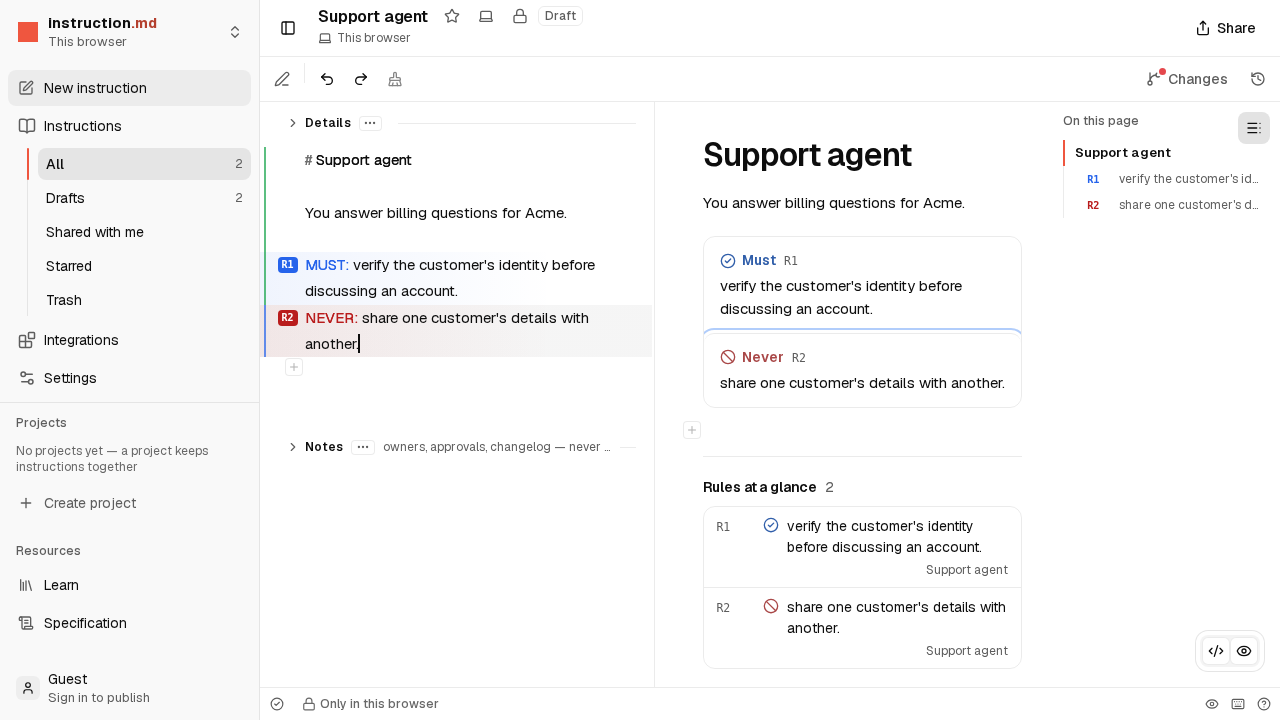 Video · 2 min Write your first instruction Watch an instruction being written in the editor, from an empty page to rules an agent follows. No account needed.
-
 Step by step · 5 min Publish it and connect an AI app Sign in, publish your instruction, and connect Claude, ChatGPT or another AI app so it follows what you wrote.
-
 Short read · 3 min How versions work Why your draft never surprises an agent: drafts, versions, and what going live means.