GuidesStep by step5 min
Publish it and connect an agent
Sign in, publish your instruction, and point an AI agent at it so it follows what you wrote.
Before you start
- An instruction you have written. If you don't have one yet, write your first instruction.
- A device that can use a passkey: a recent phone or computer with a fingerprint, face or screen lock.
Sign in
In the editor, choose Sign in at the bottom of the side bar. You enter your email, then create a passkey. There is no password to remember. More about signing in.
What you wrote as a guest is still in this browser, and you can move it to your workspace.
Open Changes
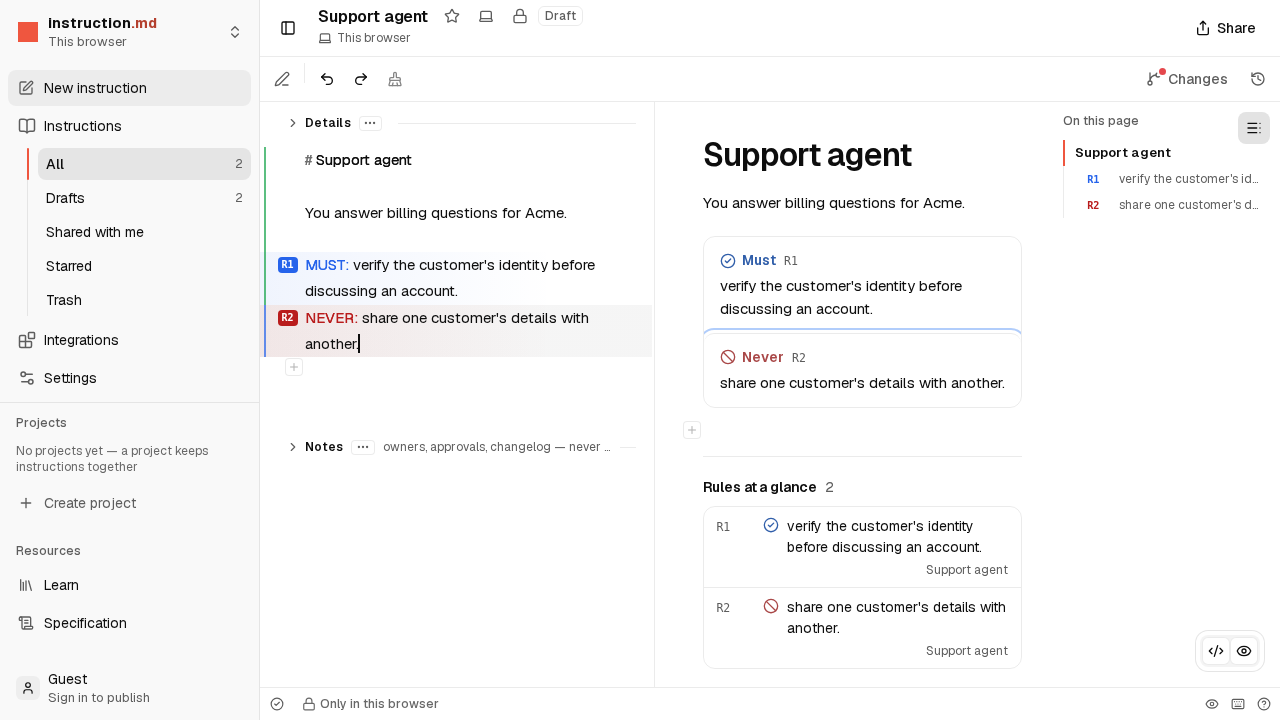
Open your instruction and choose Changes at the top right. It shows what is different from the version agents use now. The first time, it says Not published yet.

Publish
Add a short note about what changed if you like, then choose Publish. This makes a version: a copy that never changes. Your draft stays yours to keep editing.
If the editor finds a problem an agent could trip over, it tells you what to fix first.
Choose who can read it
Choose Share at the top right. An instruction is private until you decide otherwise: keep it to yourself, share it with people in your workspace, or make it public.
Connect an agent
Agents read instructions over MCP, a standard way for AI apps to connect to outside services. Add this address to your agent or AI app as an MCP server, and sign in when it asks:
https://instruction.md/mcpThe agent can then read the instructions you may read, and follow one. Connect an agent has the exact steps for Claude Code, Cursor and others, and for agents that run on their own.
Change it, and publish again
Edit the draft whenever you like. Nothing reaches the agent until you publish. When you do, agents that follow the instruction pick up the new version without being restarted.
If something doesn't work
- Publish is greyed out. There is nothing new to publish, or you are not signed in. Hover over it to see why.
- You can't sign in. See Lost your passkey?
- Anything else. Ask us.