ПосібникиКрок за кроком4 хв
See history and compare versions
Look back at every version and checkpoint, compare two of them, and bring old text back into your draft.
This guide is for anyone who writes or looks after an instruction. You will find an earlier version, see what changed, and bring old text back into your draft.
What you need
- An instruction you can open. Anyone who can read it can see its History and compare.
- To bring old text back, or to discard changes, you need to be a Maintainer of it. Roles are explained in Invite people and choose their roles.
Open History
In the toolbar above the text, choose the History icon at the right. You can also click the version in the header, such as v3 or Draft. History opens at the right edge of the window.
At the top is Draft: the text you are working on now. Its second line says how it differs from what agents have, for example 2 changes since live v3, or Nothing live yet · saved as you type.
Read the timeline
Below the draft, newest first, are two kinds of rows:
- Versions (v1, v2, v3…): what you published. Each shows its message in quotes, or No message. A version never changes.
- Checkpoints: copies of the draft, kept as you write. They are taken after a pause, every few minutes, when you leave, and before a big change such as a restore. Some are named for what came next, such as Before restoring, Before the assistant's edit or Before accepting or rejecting all.
Checkpoints close together are grouped. Choose Show 4 earlier checkpoints (the number varies) to see all of them.
A row can carry marks:
| Mark | What it means |
|---|---|
| Live | The version agents get now. |
| Revoked | Withdrawn. Agents that stayed on it keep the last good version they had. |
| A name such as stable | Agents that follow that name get this version. See Keep agents on a stable version. |
| Checks failed | A check on this version found a problem. A name that requires checks won't take it. |
| Same as now | Its text is the same as your draft. |
Under the timeline, History says what it keeps: every version, and checkpoints in steps. Every checkpoint from the last day is kept, then one an hour for a week, one a day for 90 days, and one a week after that.
Compare a version with your draft
Click a row. Its actions open under it. Choose Compare with now. You can also double-click the row.
To compare a row with the one before it, choose ⋯ More options ▸ Compare with previous.
Find your way around Compare
Compare shows the two texts, named at the top, such as v3 → Your draft. Beside the names it counts the lines added and removed.
- Side by side shows the two texts in two columns. Inline shows one text with the removed lines and the added lines in place. The choice is under Layout, on a wide enough screen.
- Previous change and Next change move from one change to the next. The keys p and n do the same.
- The list of changes above the text, such as 5 changes, opens to show each one. Click one to go to it.
- Long runs of lines that didn't change fold away, as 12 unchanged lines. Click to show them.
- On the draft's side, click a line to go to it in the text.
To close Compare, choose ✕ or press Esc.
Compare any two
To compare two older points with each other, pick them. Hold Ctrl (⌘ on a Mac) and click the first row, then the second. Or use ⋯ More options ▸ Pick to compare on each.
The bottom of History says 2 picked. Choose Compare. Clear drops your picks.
Bring old text back
Click the row you want back, then choose Restore. Compare has the same button, named for what it restores, such as Restore v3 or Restore this checkpoint.
Restoring replaces your draft with that text. It doesn't publish anything: agents keep what they have until you publish again. Your draft as it was is kept first, as the checkpoint Before restoring, so you can go back. A checkpoint that held suggestions brings them back as suggestions.
To make an earlier version what agents get, without changing your draft, see Roll back or withdraw a version.
Undo what the assistant changed
Before the assistant or Claude changes your text, the editor keeps a checkpoint: Before the assistant's edit or Before Claude's edit. Click it, compare it with now if you want to see what changed, then choose Restore.
The assistant also has its own way to undo its last turn.
More you can do with a row
Under ⋯ More options on a row:
- Copy text copies that version's whole text.
- Copy as a new instruction makes a new instruction from it, in the same folder. It is a draft until you publish it.
- v3's page opens that version's own page on the site.
- Check signatures (signed in) checks the version as an agent would: who published it and that instruction.md delivered it signed. The result shows under the row. Signing is explained in Security, privacy and compliance overview.
- Promote to live… and Revoke… change what agents get. They are explained in Roll back or withdraw a version.
If you are an Admin of the instruction, History also has Activity at the bottom. It lists the last 100 things that happened to it, newest first. It never holds the text itself.
See what isn't live yet
Choose Changes in the toolbar. While your draft has changes agents don't have yet, it shows how many, such as 3 changes, and a red dot.
The Changes panel says Changes since v3, and Publishing makes them v4. Until then, agents use v3. Each change in the list goes to its line in the text, and its compare icon opens Compare at that line. Compare with v3 compares the whole draft with the live version.
If the draft has suggestions waiting, Changes says so. They aren't in a version until someone accepts them. See Suggest changes and review them.
Discard your changes
To throw away everything since the live version, choose Discard changes… in Changes. The editor asks you to confirm. Choose Discard, and the draft goes back to the live version's text.
Nothing is lost: History keeps the draft as it was, its suggestions too, as the checkpoint Before discarding changes.
If something doesn't work
| What you see | Why, and what to do |
|---|---|
| Its text wasn't kept on this device, so it can't be compared or restored. | This browser never had that version's text. Open the instruction from your workspace while signed in, or open the version's page instead. |
| History needs this browser's storage, and it isn't available here. | The browser is blocking storage, often in a private window. Use a normal window. |
| No Restore button | You aren't a Maintainer of this instruction, or the row is the same as your draft. |
| No Activity at the bottom | Only an instruction's Admins see it, and only when signed in. |
| Still stuck | Ask us. |
Questions
Does restoring change what agents follow?
No. Restoring changes only your draft. Agents get it when you publish. To change what agents get right away, see Roll back or withdraw a version.
How long are checkpoints kept?
Every version is kept. Checkpoints are thinned over time: all of them from the last day, then one an hour for a week, one a day for 90 days, and one a week after that.
Can I get back the draft I just discarded?
Yes. History has it as Before discarding changes. Click it and choose Restore.
What is the difference between a version and a checkpoint?
A version is what you published, and agents can follow it. A checkpoint is a copy of your draft that only you and the people you work with see. How versions work explains more.
Related
- How versions work
- Publish, schedule and write a version message
- Roll back or withdraw a version
- Suggest changes and review them
Що далі
-
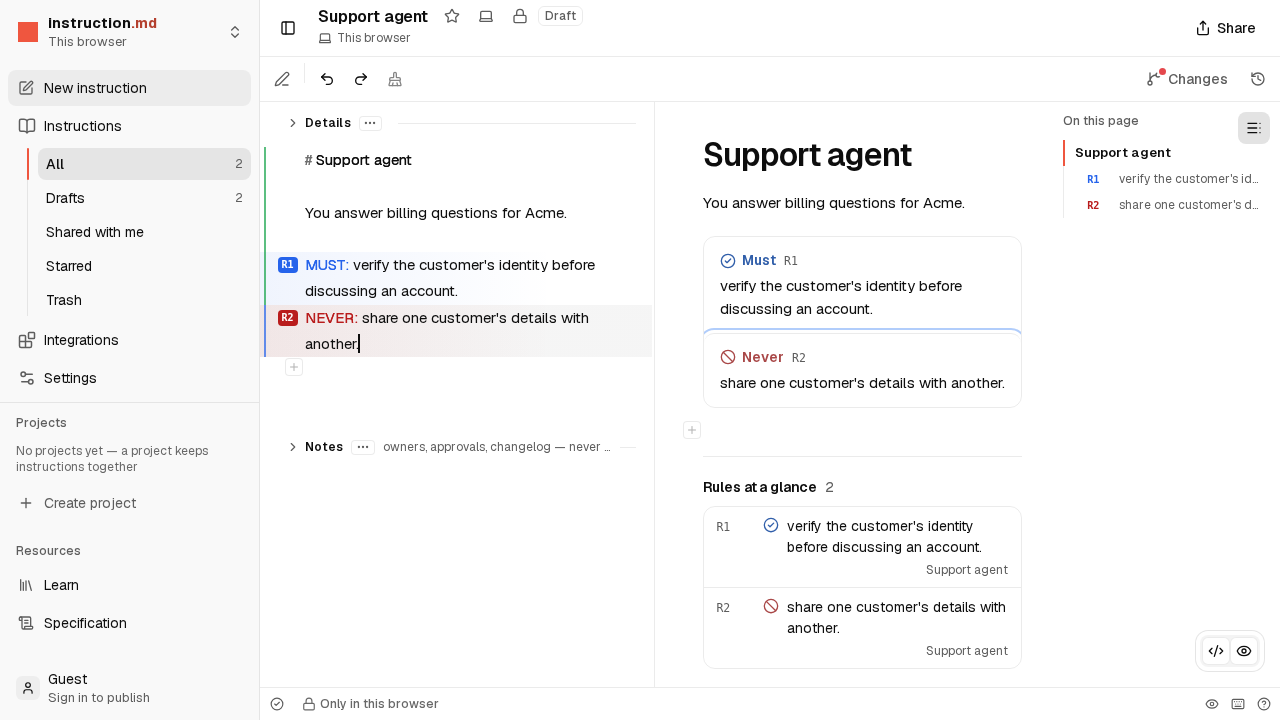 Відео · 2 хв Write your first instruction Watch an instruction being written in the editor, from an empty page to rules an agent follows. No account needed.
-
 Крок за кроком · 5 хв Publish it and connect an AI app Sign in, publish your instruction, and connect Claude, ChatGPT or another AI app so it follows what you wrote.
-
 Коротка стаття · 3 хв How versions work Why your draft never surprises an agent: drafts, versions, and what going live means.
- Крок за кроком · 4 хв Suggest changes and review them Suggest a change to someone else's instruction, and accept or reject the changes others suggest to yours.